Slack app support and permissions
Email hello@spiich.ai for help with the Spiich Slack app and a person replies within 2 business days. This page also explains what the app can access in Slack and why, how to connect or disconnect your own Slack, and fixes for common problems.
Before you start
- A Spiich account.
- A Slack account in the workspace you want Spiich to read.
Need help with Spiich in Slack? Email hello@spiich.ai and a person replies within 2 business days, usually the same day. No Spiich account is needed to ask. Tell us your Slack workspace name, what you tried and what you saw; a screenshot helps.
Two kinds of access
The Spiich Slack app has two parts, and each is switched on and off on its own.
| Access | The @Spiich app | Your own Slack |
|---|---|---|
| Who connects it | One person, for the whole workspace | Each person, for themselves |
| What it reads | Channels it is invited to, and direct messages sent to it | What you can already see in Slack, only when you ask Spiich in Chat |
| What it posts | Answers where you talk to it, and the agent reports you set up | Nothing. It is read-only |
| How to turn it off | Disconnect in Settings > Integrations | Switch off Slack in a chat, or disconnect in Settings > Integrations |
Setting up the @Spiich app is in Connect Slack.
Connect your own Slack
Open Integrations
Go to
Settings > Integrationsand find the Slack card under Outreach and messaging.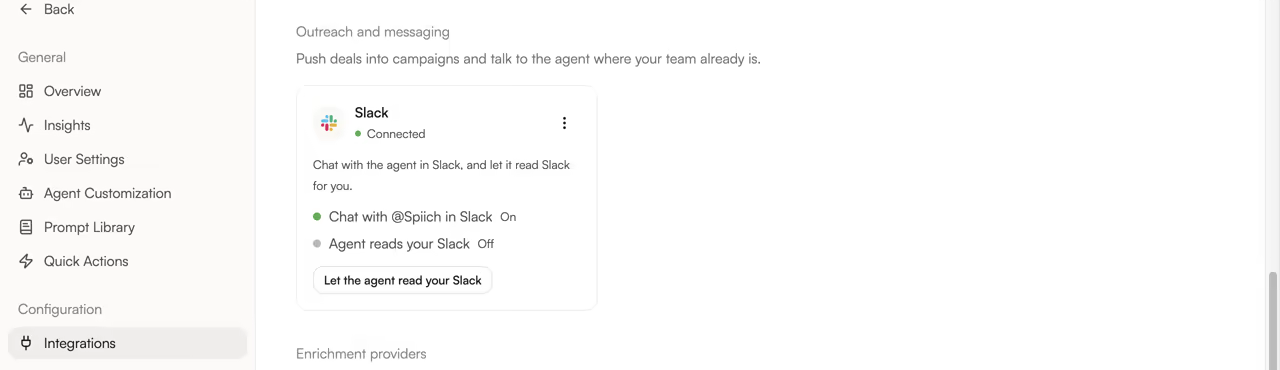
The Slack card. Here @Spiich is already in the workspace, so only Agent reads your Slack is Off, with its button below. Let the agent read your Slack
Click Let the agent read your Slack. Slack opens in the same tab; sign in to your workspace if it asks.
Approve in Slack
Slack lists what Spiich will be able to read, as described below. Click Allow and you return to Spiich.
Check that it is on
Back on the Slack card, Agent reads your Slack shows On, read-only and its button is gone.
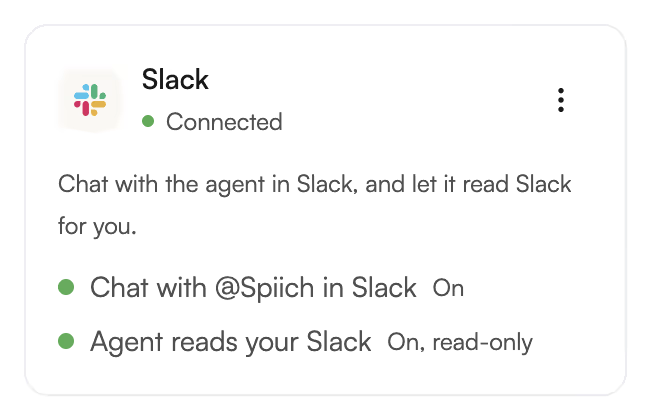
After connecting, Agent reads your Slack shows On, read-only and its button is gone. The @Spiich row is separate and does not change.
When you ask a question in Chat, Spiich can now search the channels and direct messages you can already see, and read the rest of a thread it finds. To leave Slack out of one chat, switch Slack off in that chat's Tools menu.
Disconnect
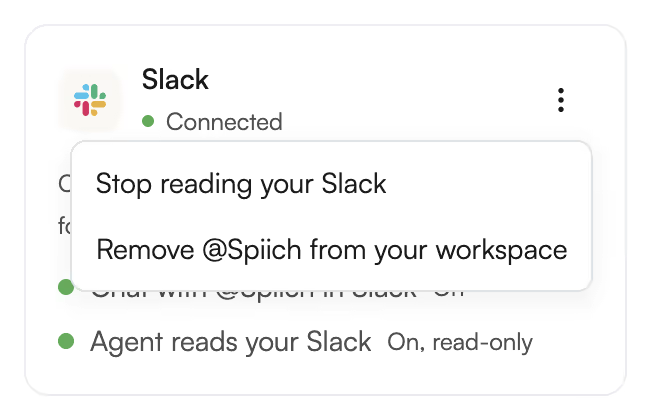
Both are in the three-dot menu on the Slack card.
- Your own Slack: choose Stop reading your Slack. Spiich revokes the token with Slack and deletes it.
- The @Spiich app: choose Remove @Spiich from your workspace and confirm. The bot stops answering, its token is cleared, and the cached list of Slack people and channels is deleted.
What the @Spiich app can access
| What Spiich can access | Why Spiich needs it |
|---|---|
| Messages that mention @Spiich, and direct messages sent to it | To answer the question you asked |
| Messages in public and private channels @Spiich has been invited to | To read the thread around a question, up to 50 messages |
| The names of channels @Spiich is in | To list them when you pick where an agent reports |
| Posting messages as @Spiich, and opening a direct message with a person | To post answers, and to send an agent report to its owner |
| The names and email addresses of people in the workspace | To match each Slack user to their Spiich account |
What your own Slack connection can access
Everything here is read-only, and limited to what you can already see in Slack.
| What Spiich can access | Why Spiich needs it |
|---|---|
| Search messages in public channels, and in the private channels, direct messages and group messages you are in | To find the messages that answer your question |
| Find people in the workspace by name | To find a person you name, for example your direct messages with Erik |
| Read a whole conversation you are in | To read the rest of a thread that a search found |
| The names of channels and people | To show who said what, and where |
Spiich can never post, react or change anything in Slack as you.
If something goes wrong
@Spiich never replies in a channel. It has not been invited. Run /invite @Spiich in that channel and mention it again.
Slack says your account is not linked. The email on your Slack profile does not match a Spiich user in the workspace. Align the addresses, or ask an admin to invite that email to Spiich.
Spiich cannot find a Slack message you can see. Check that Let the agent read your Slack shows On and that Slack is switched on for that chat.
An answer looks wrong. Spiich uses AI and can make mistakes. Email us the thread or chat and we will look.
Your data
How Spiich handles Slack data is in the Slack section of our privacy policy. To ask for your Slack data to be deleted, email hello@spiich.ai.